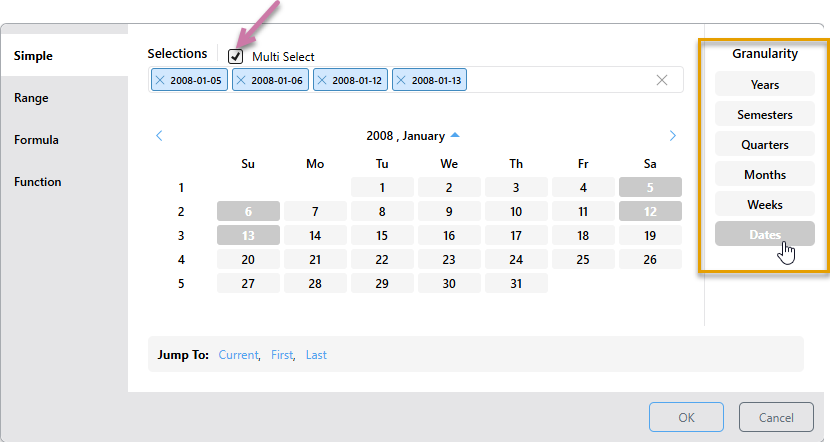
The Simple Picker allows you to select or manually enter dates that should be used to filter the query. To select more than one element, you must select the Multi Select checkbox (purple arrow below) and then choose multiple elements in the picker from any level of granularity (orange highlight).
The example below filters the query by the four dates selected - 5, 6, 12, and 13 January, 2008:
Single Select
You can select a single element from a selected granularity level. Multi Select is enabled by default, so you must clear the Multi Select checkbox (purple arrow below) to set the panel into single-select mode. You then have the following options:
- Select one of the dates in the date picker.
- Type your date into the date text field (orange highlight) and press Enter. The date you entered is selected in the date picker.
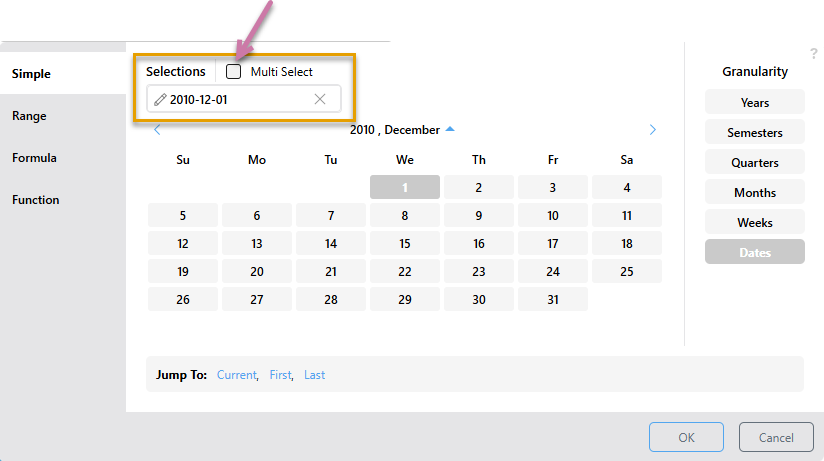
Tip: If you haven't selected a date from the date picker, the editable text field displays the expected date format (for example, YYYY-MM-DD). Selecting a date from the date picker automatically populates the field using the correct format. In either case, you can overwrite the value in the text field and press Enter to update the date.
Multi Select
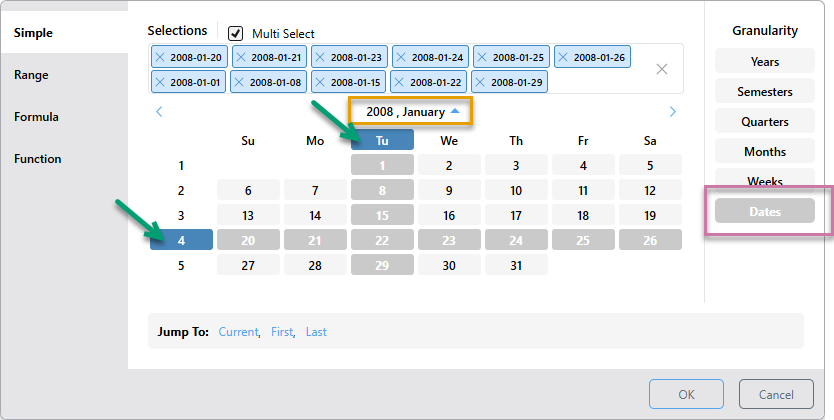
The multi select option is supported by the Simple Date Calendar, allowing you to select multiple date-time elements. You can select multiple elements from different granularity levels.
Multi Select is enabled by default; to disable it, clear the Multi Select checkbox (green arrow below):
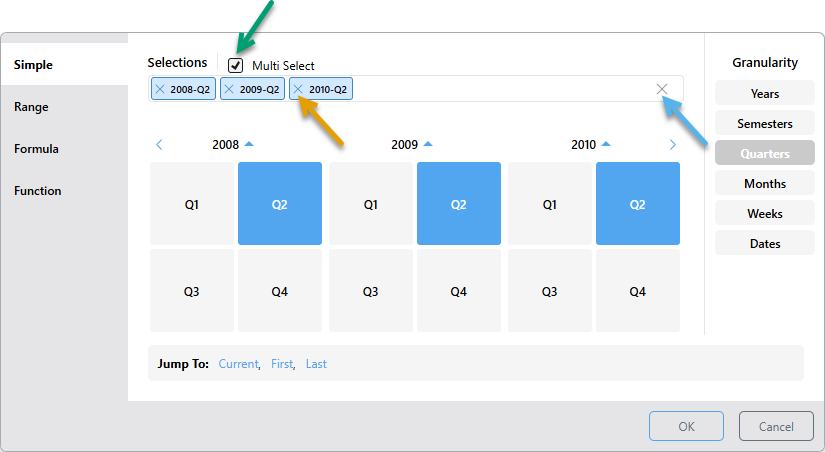
Tip: To remove selections from the panel, either click their X icons individually (orange arrow above), or click X at the end of the Selections field to remove all (blue arrow).
 Multi Select Examples
In this example, all Tuesdays in September 2010 were selected, along with the entire 4th week of the same month:
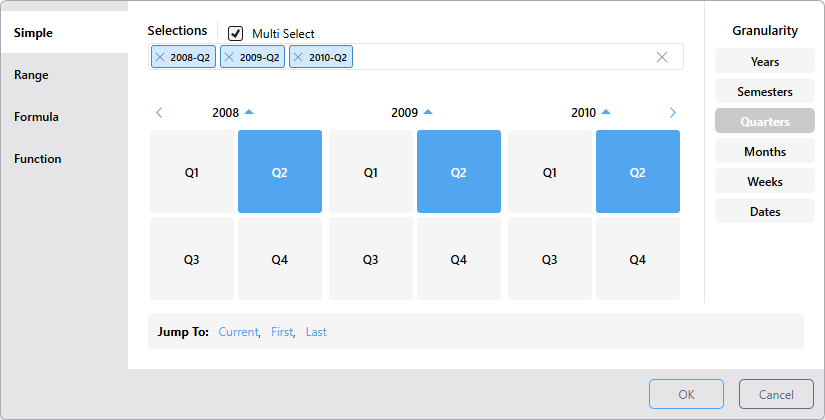
In this example, Q2 was selected from 2008, 2009, and 2010: